Getting started
Wockett has five tabs: Health, Routes, Home, Community and Settings. Home is where every walk starts.
Your first walk
Pick an activity, start it, and finish when you're done.
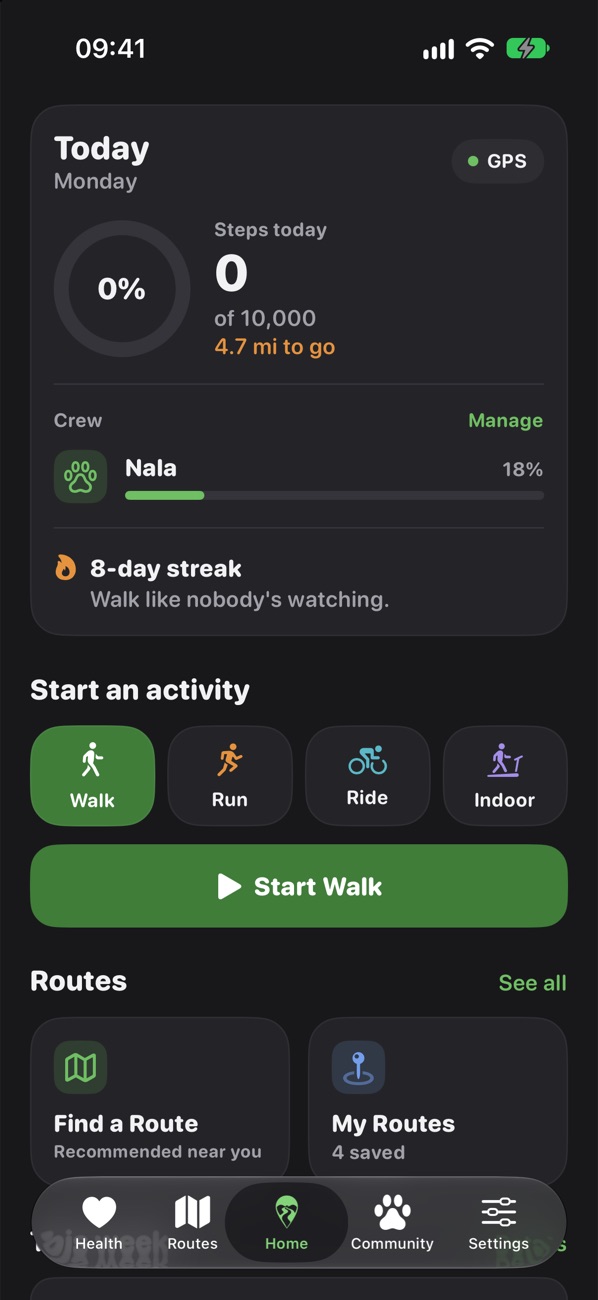
- On Home, under Start an activity, choose Walk, Run, Ride or Indoor.
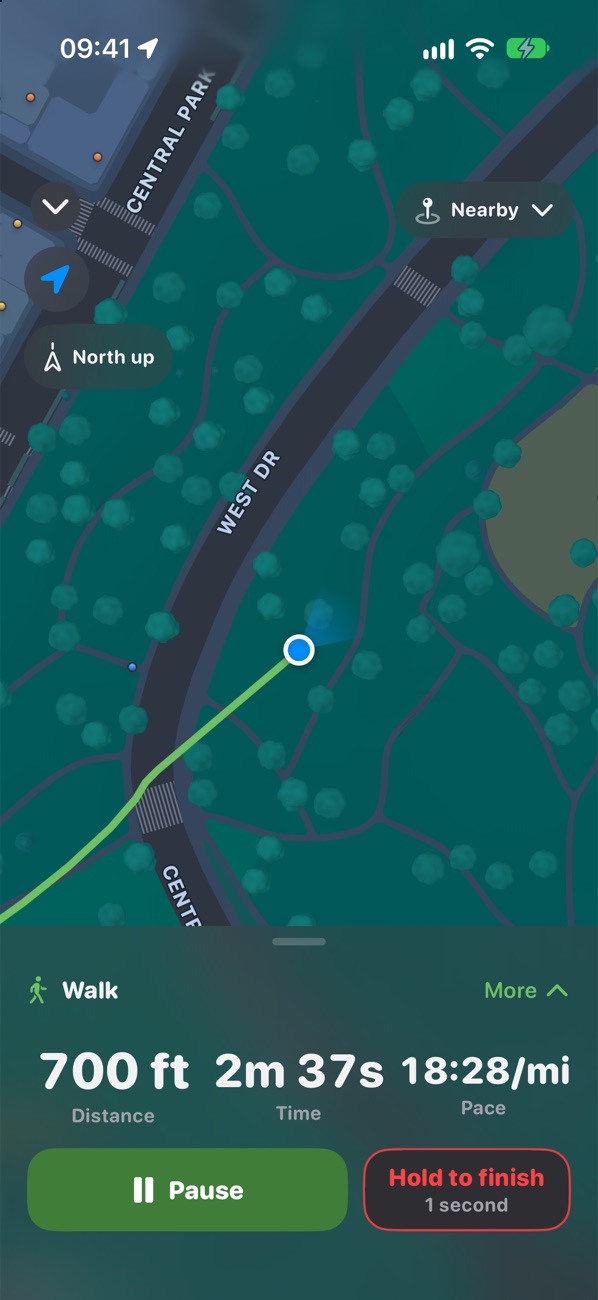
- Tap Start Walk (or Run / Ride). The walk screen opens and tracking begins.
- Need a break? Tap Pause, then Resume when you're moving again.
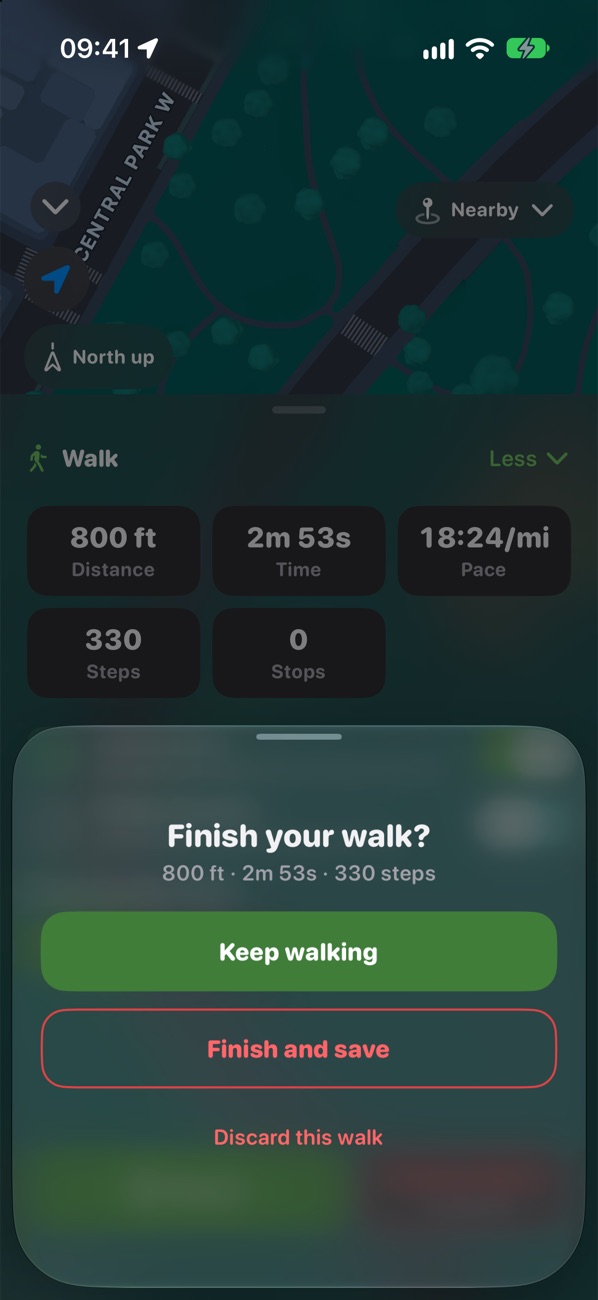
- To finish, press and hold Hold to finish for one second.
- Choose Finish and save. (Or Keep walking if you held it by mistake.)
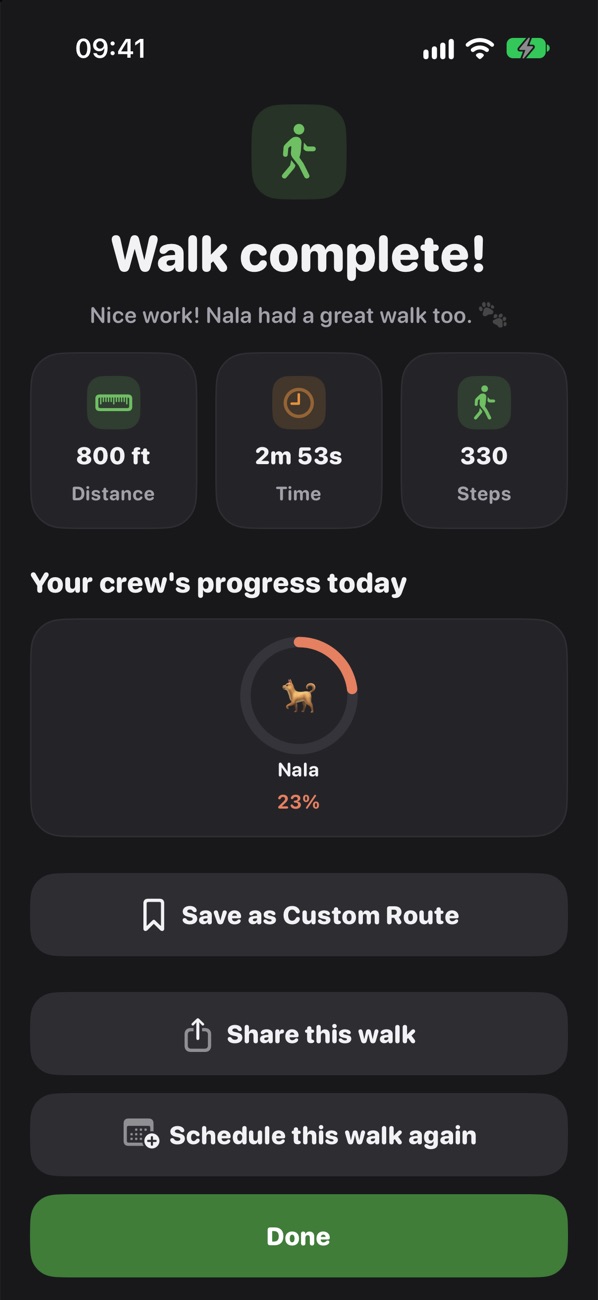
- Your summary shows distance, splits, records and your crew's progress. Tap Done.
Walking your dog
Add your pets once, and they earn credit for every walk they join.
Add a pet
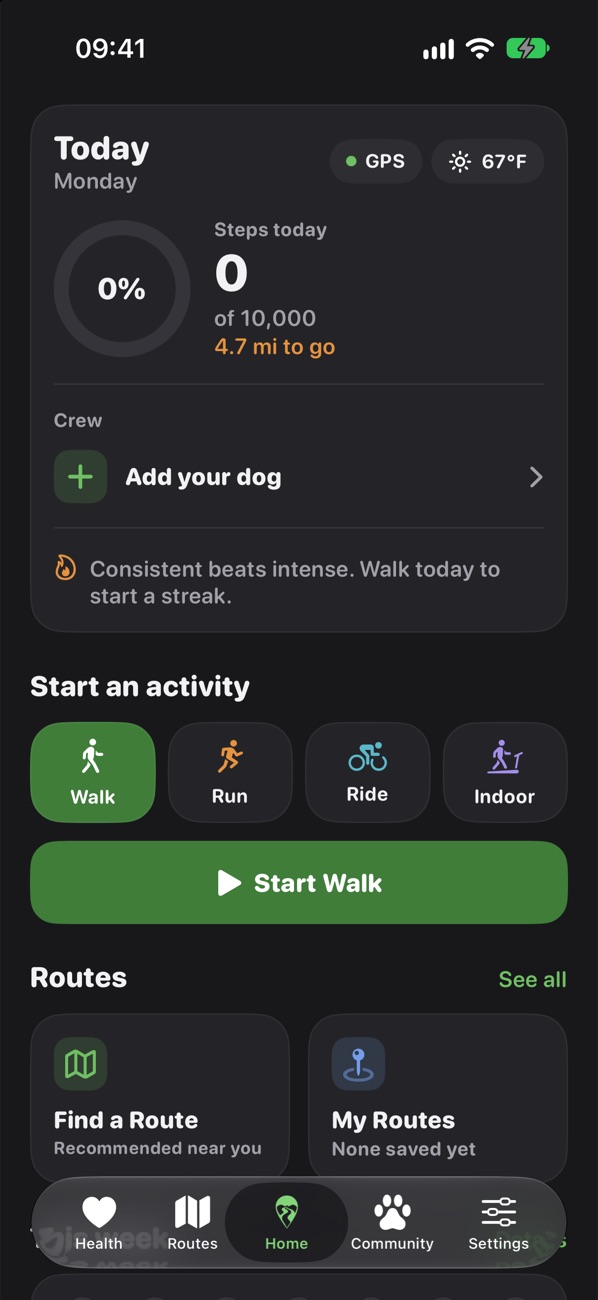
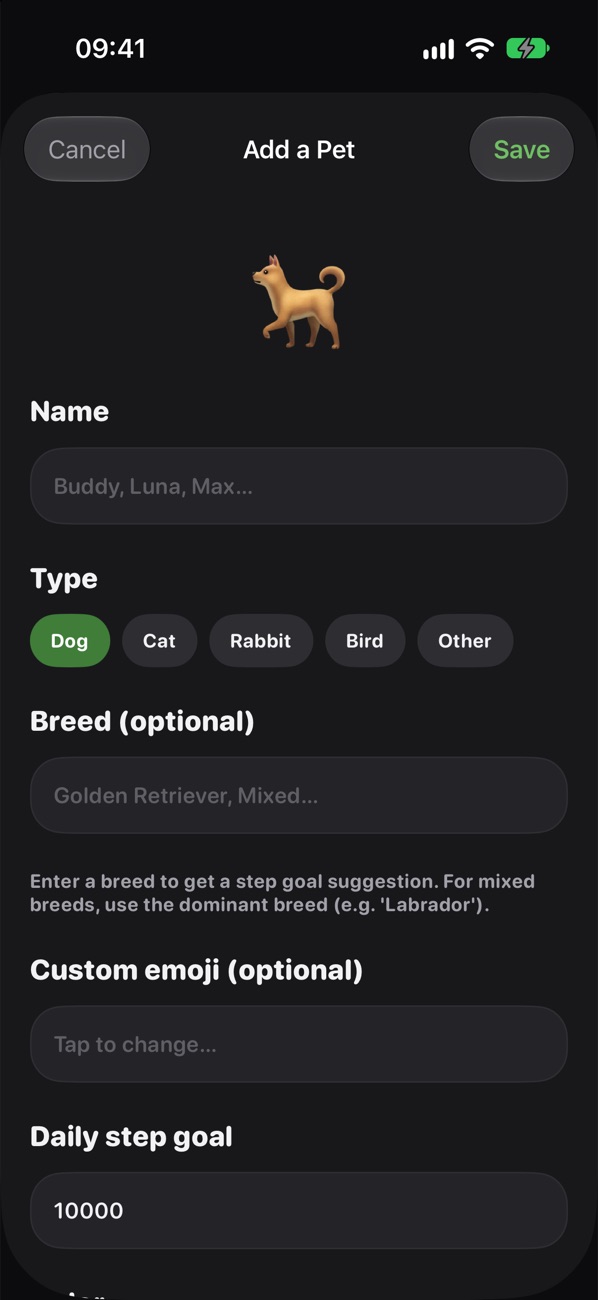
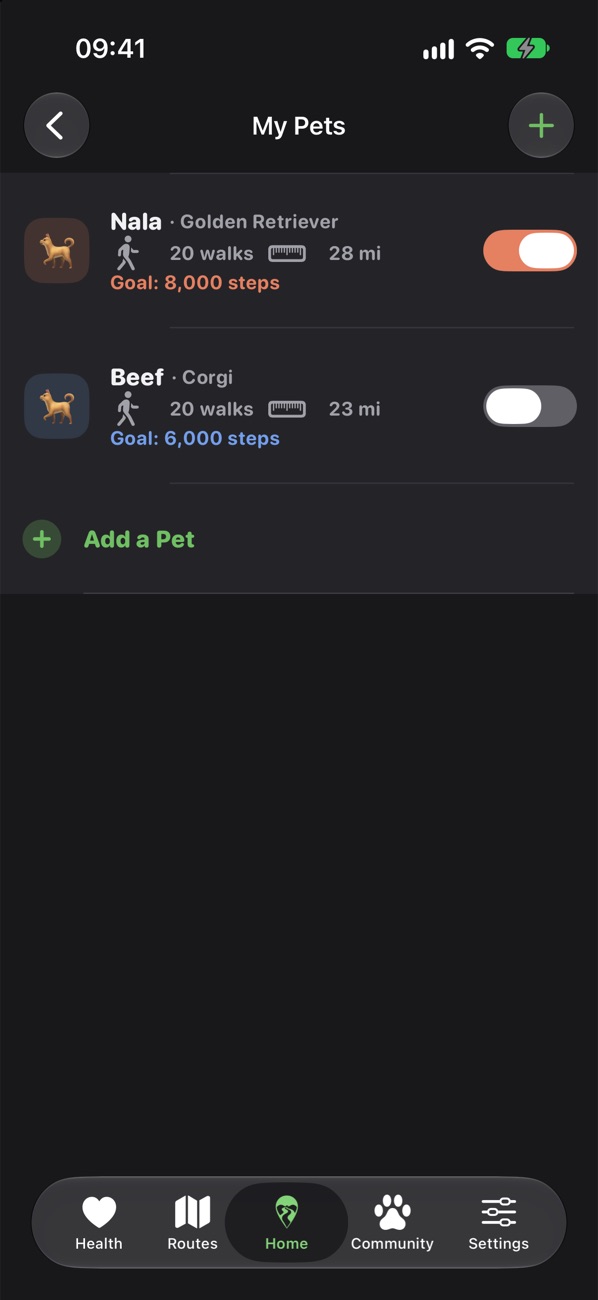
- On Home, tap Add your dog in the Crew section (or Manage if you already have pets).
- Tap Add a Pet.
- Enter a Name and choose a Type: Dog, Cat, Rabbit, Bird or Other.
- Optionally add a breed, an emoji and a colour. Set a Daily step goal, or tap the suggestion for their breed.
- Tap Save.
Choose who comes along
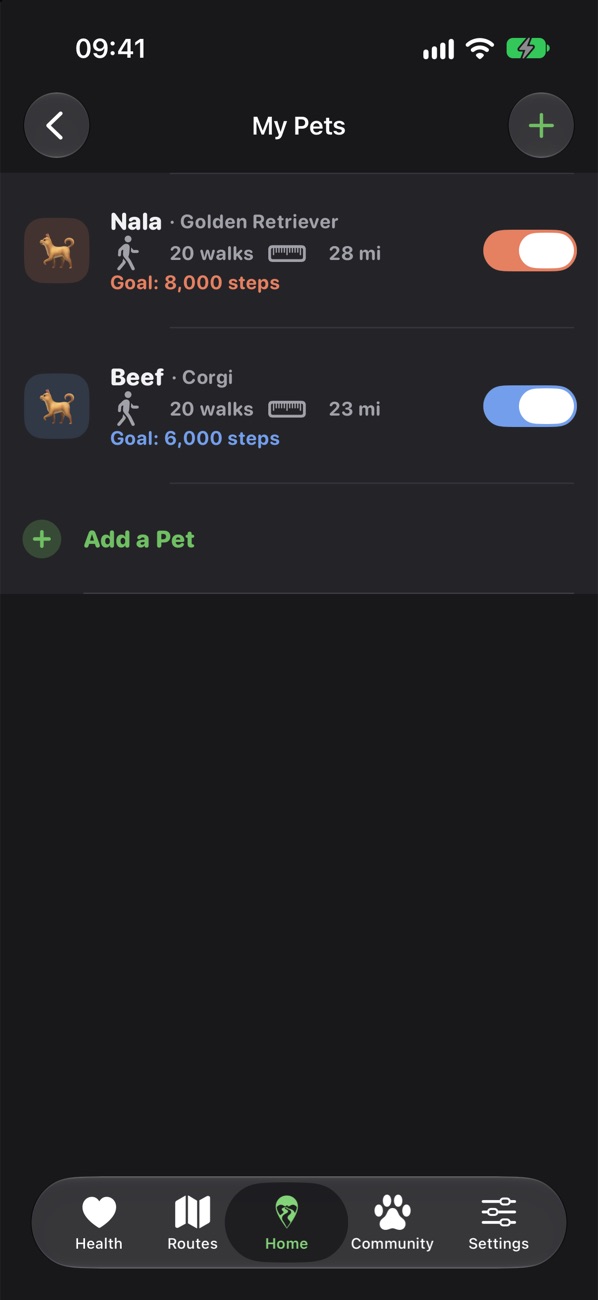
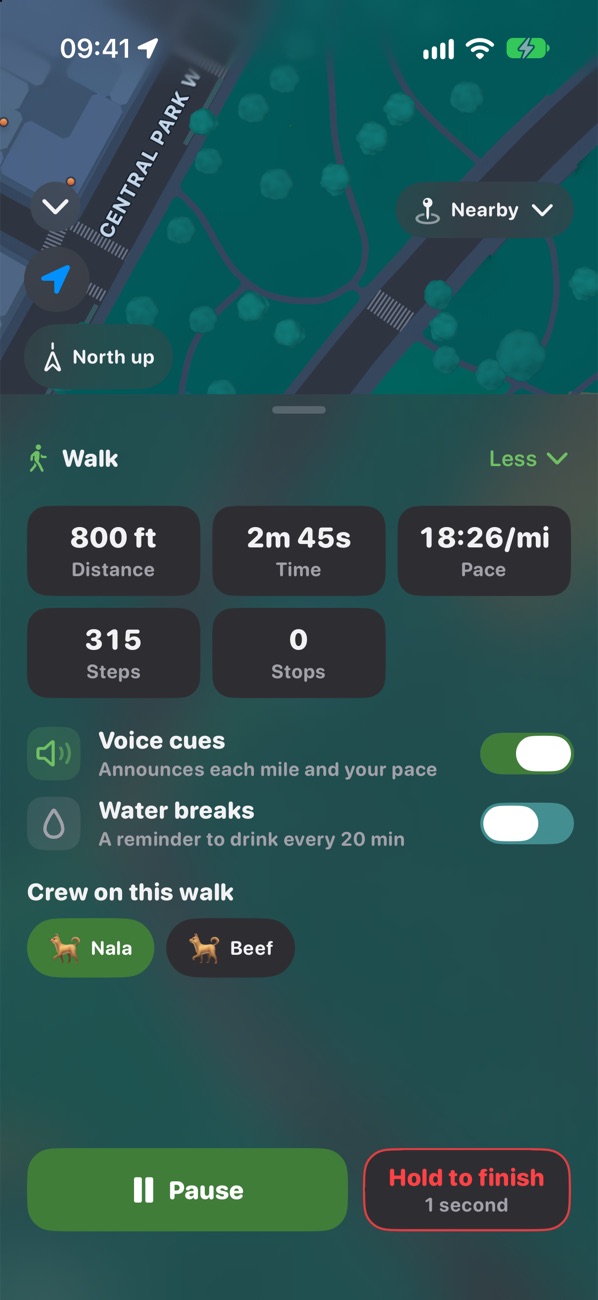
- In My Pets, switch on each pet that usually walks with you.
- During a walk, open More and tap a pet under Crew on this walk to add or remove them.
- A pet added mid-walk gets credit from the moment they join.
- To text the owner, tap Send the owner an update during the walk.
See your pet's progress
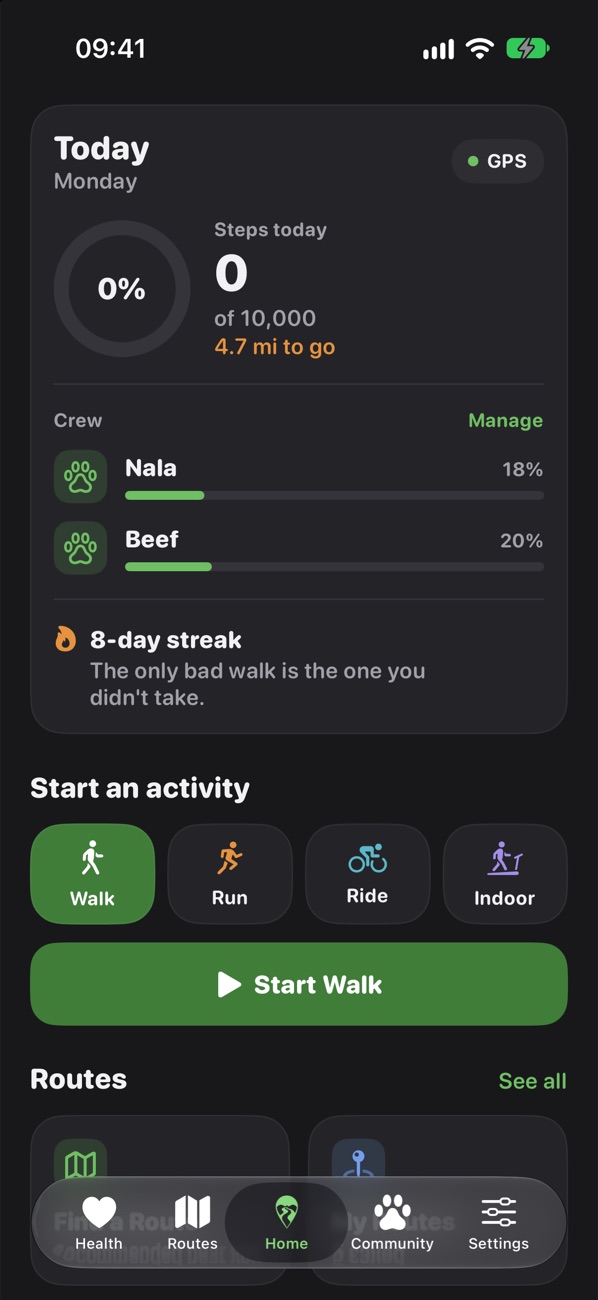
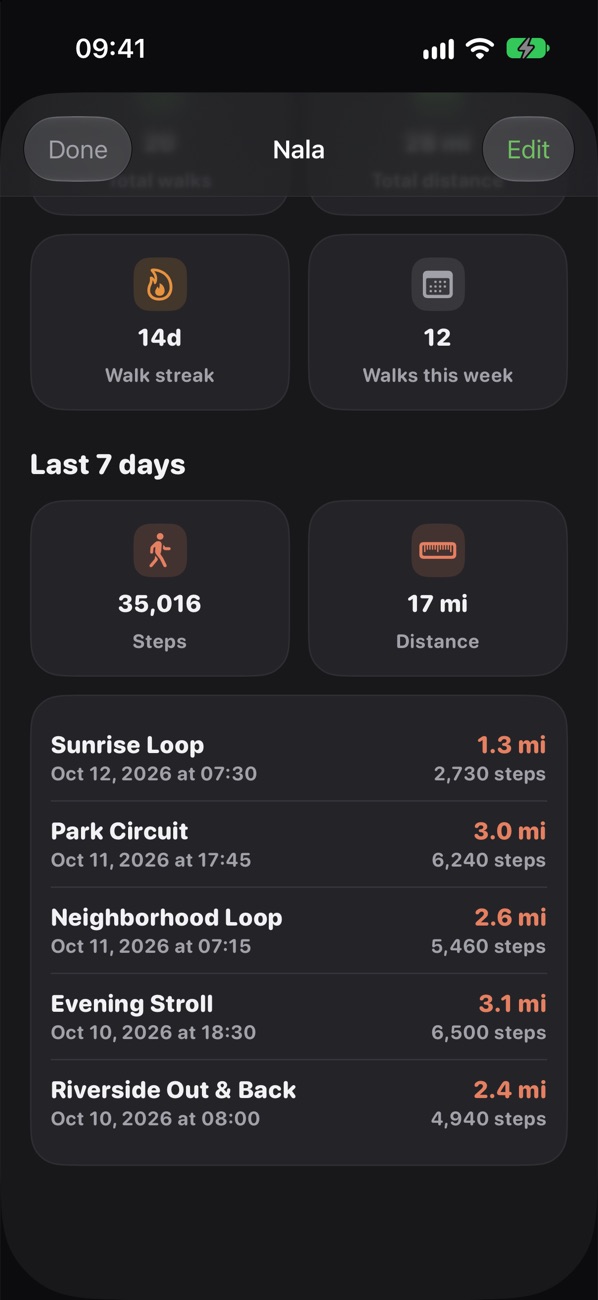
- Each walking pet has a ring on Home. Tap it for their last 7 days.
- Your walk summary shows Your crew's progress today.
- Health → Insights shows each pet's weekly and monthly totals.
Challenges
Set a goal, pick a deadline, and see who gets there first on the leaderboard.
Create a challenge
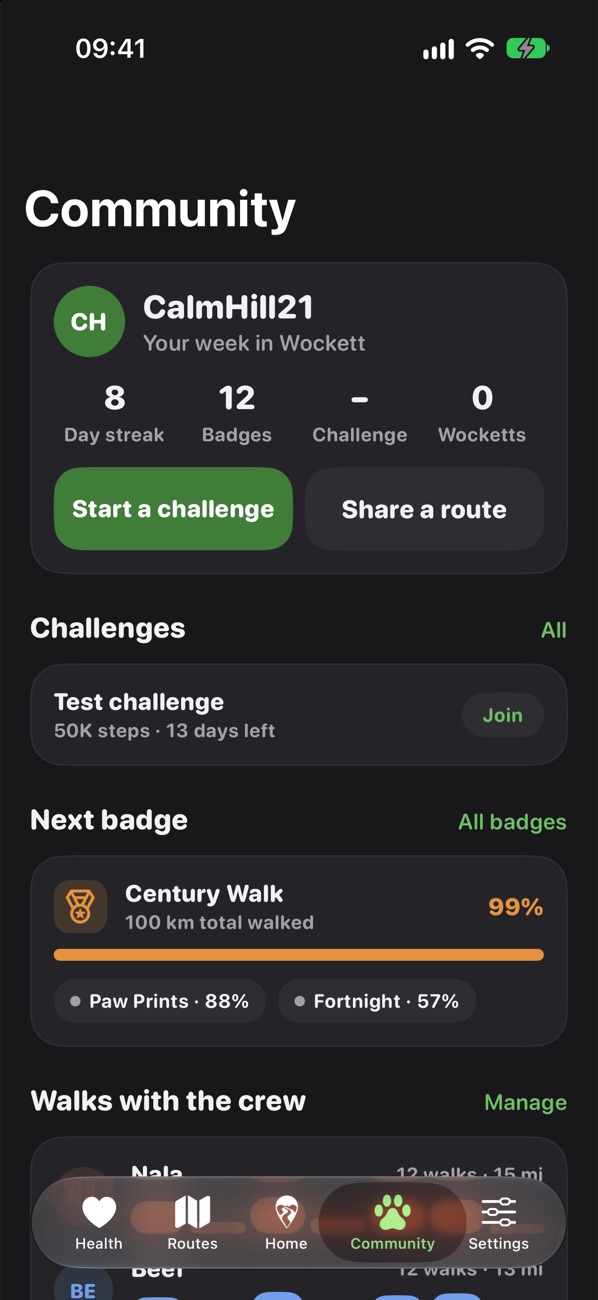
- Open the Community tab and tap Start a challenge.
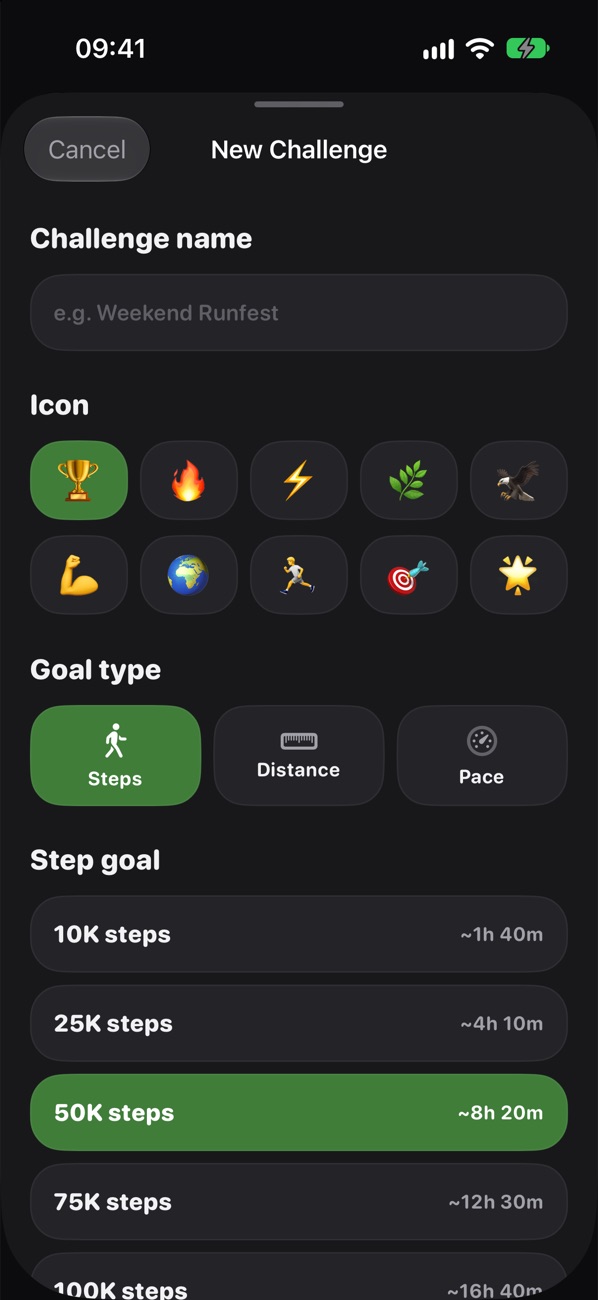
- Give it a Challenge name and pick an Icon.
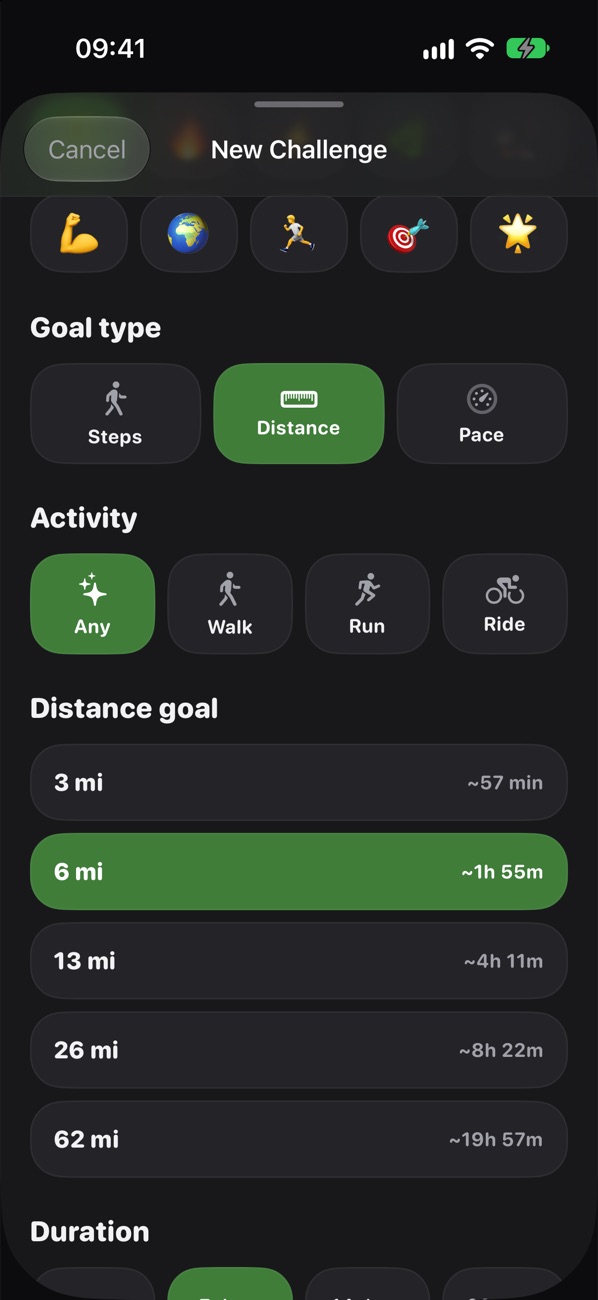
- Choose a Goal type: Steps, Distance or Pace.
- For Distance or Pace, choose the Activity: Any, Walk, Run or Ride.
- Set the goal: a step count, a distance, or a target pace and how many sessions it takes.
- Pick a Duration of 3, 7, 14 or 30 days.
- Tap Create Challenge.
Join and track a challenge
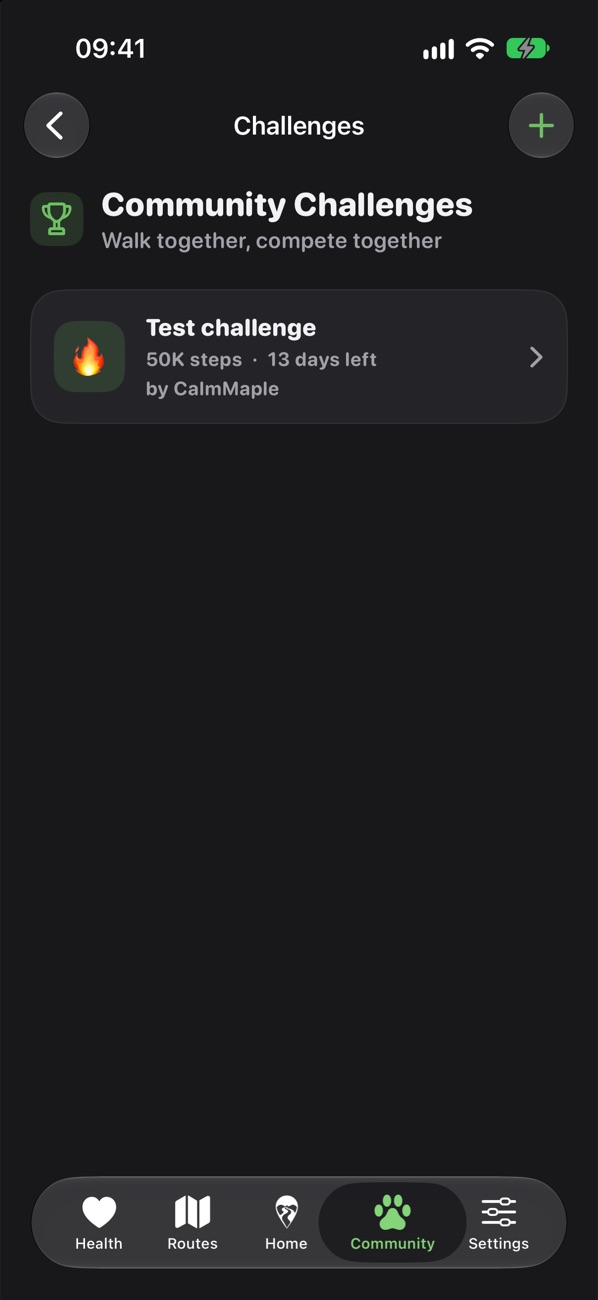
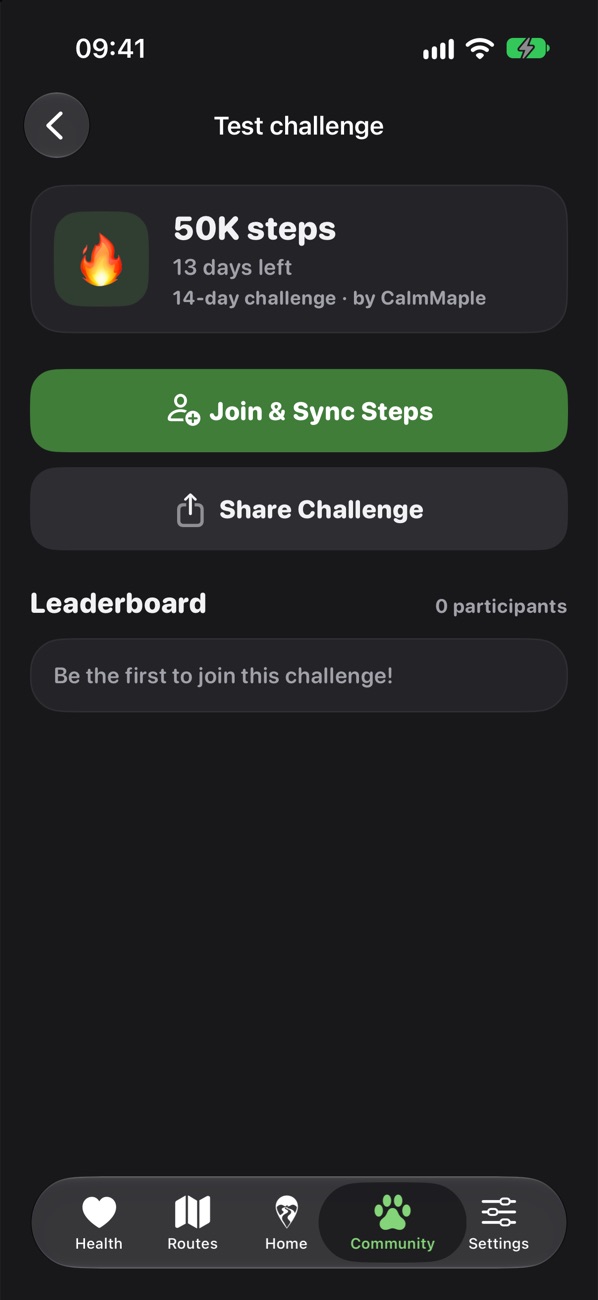
- In Community, open Challenges and tap one, or tap Join on the card.
- Tap Join & Sync Steps (or Distance / Runs).
- Come back and tap Sync My Steps to update your progress on the Leaderboard.
Share a challenge Coming in the next update
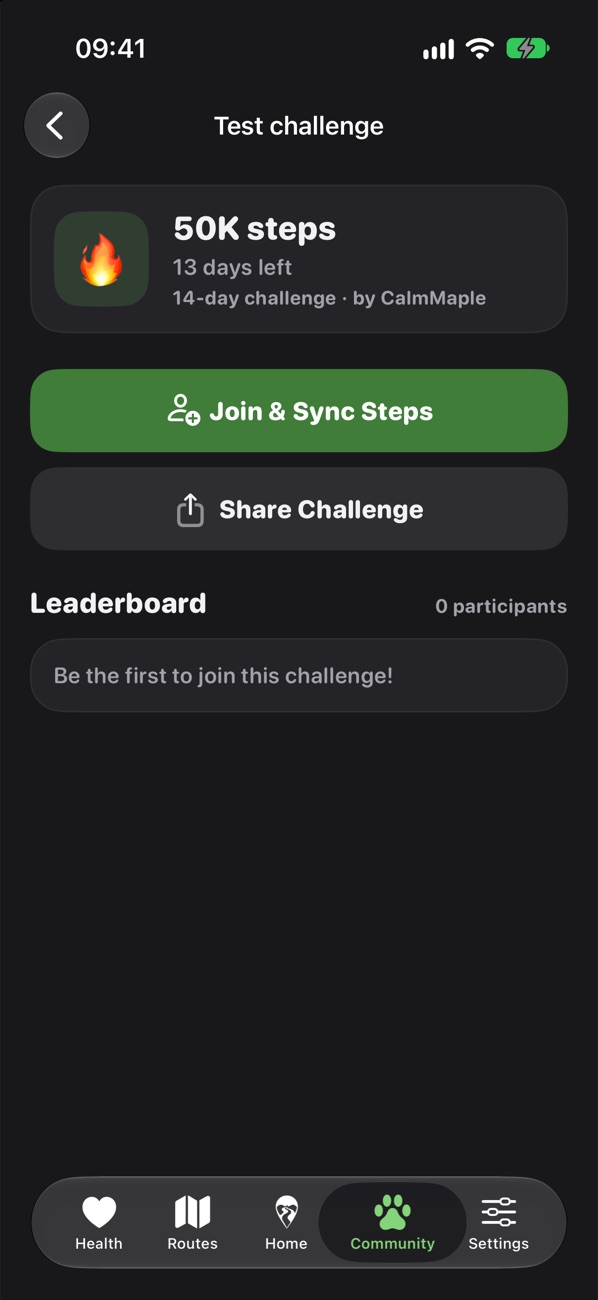
- Open a challenge from Community → Challenges.
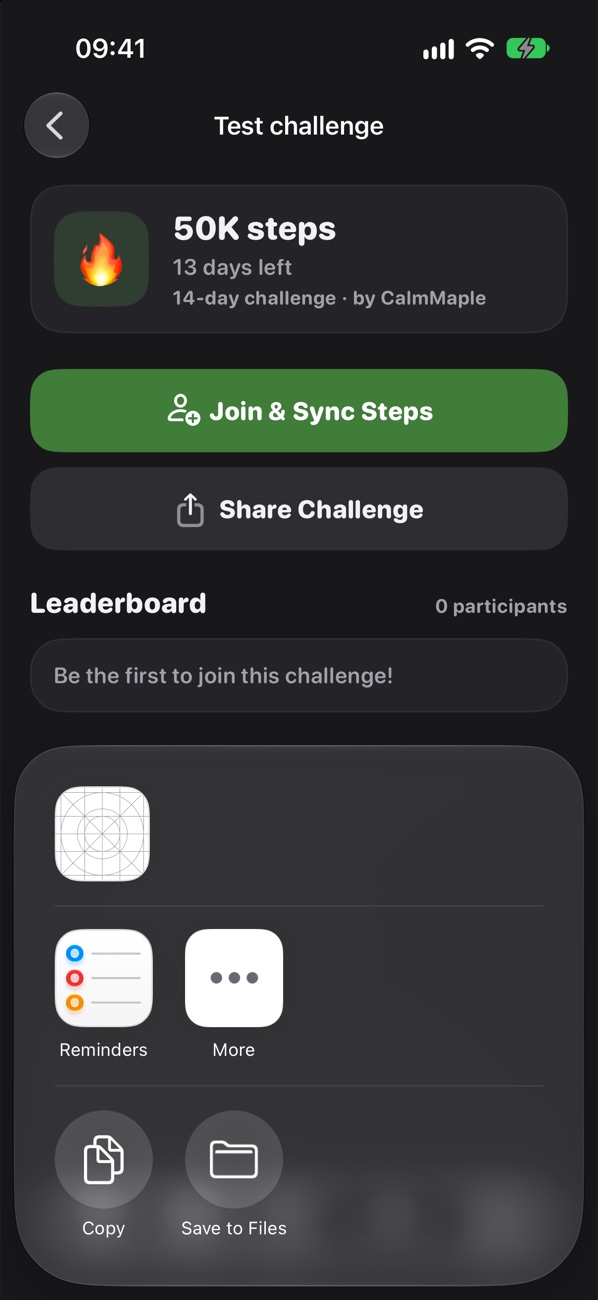
- Tap Share Challenge, under the join button.
- Pick Messages, Mail, WhatsApp or any app in the share sheet. Wockett writes the invitation for you, with the goal, how long it runs and a link.
- When a friend taps the link, the challenge opens in Wockett, ready to join. Don't have Wockett yet? The link shows a page with a button to get it.
Making routes
Build your own route on the map, save a walk you just did, or let Wockett find one for you.
Build a route on the map
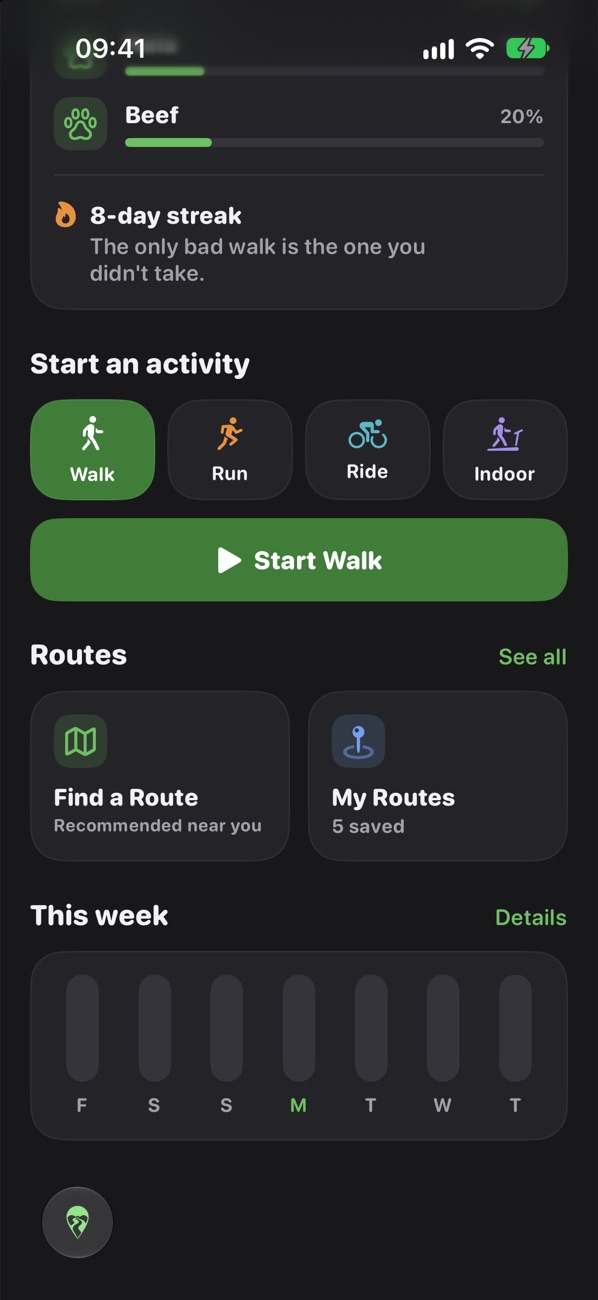
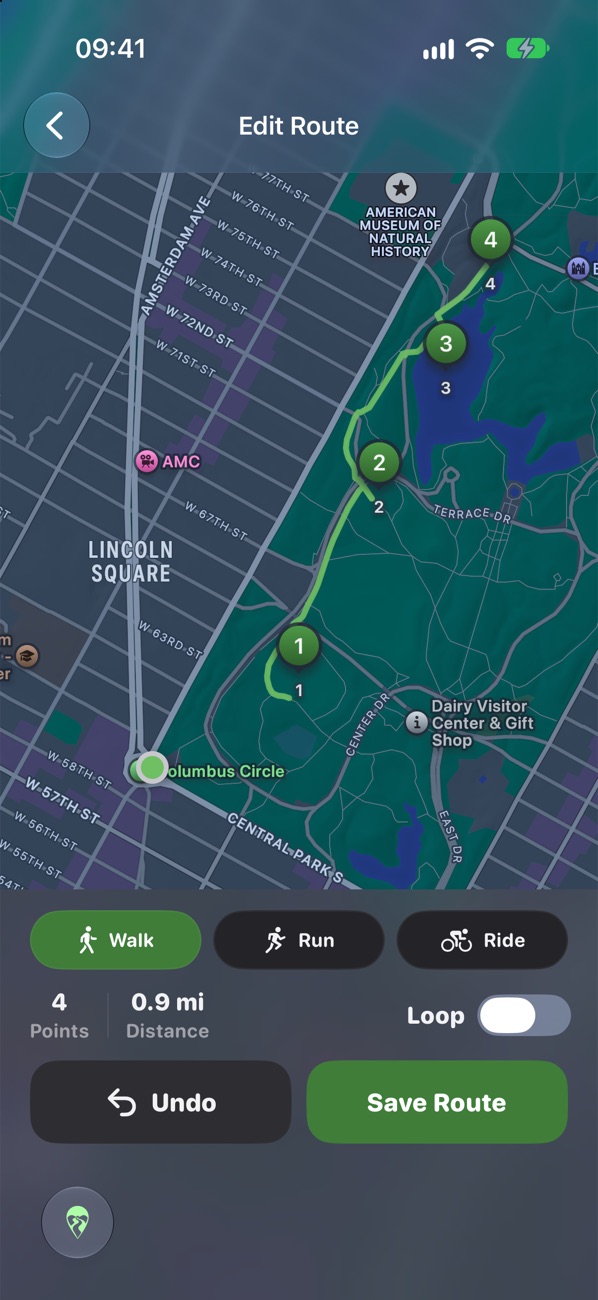
- On Home, tap My Routes, then +.
- Tap the map to add waypoints. Wockett follows real paths between them.
- Choose Walk, Run or Ride, and turn on Loop to end where you started. Undo removes the last point.
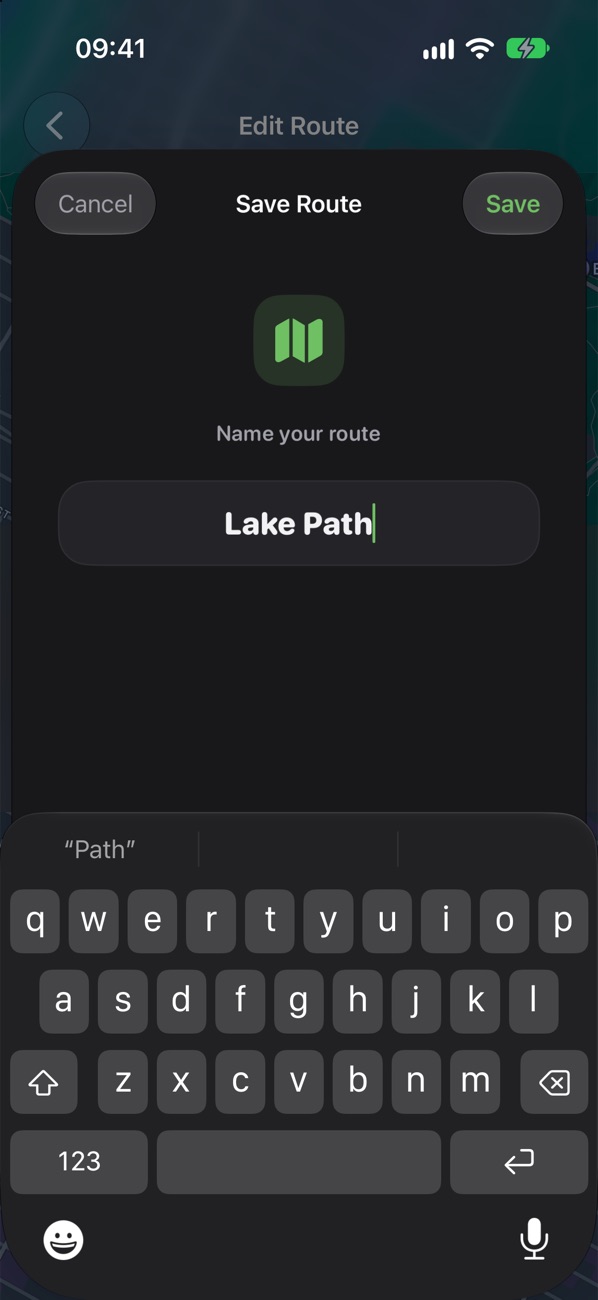
- Tap Save Route, give it a name, and tap Save.
Save a walk as a route
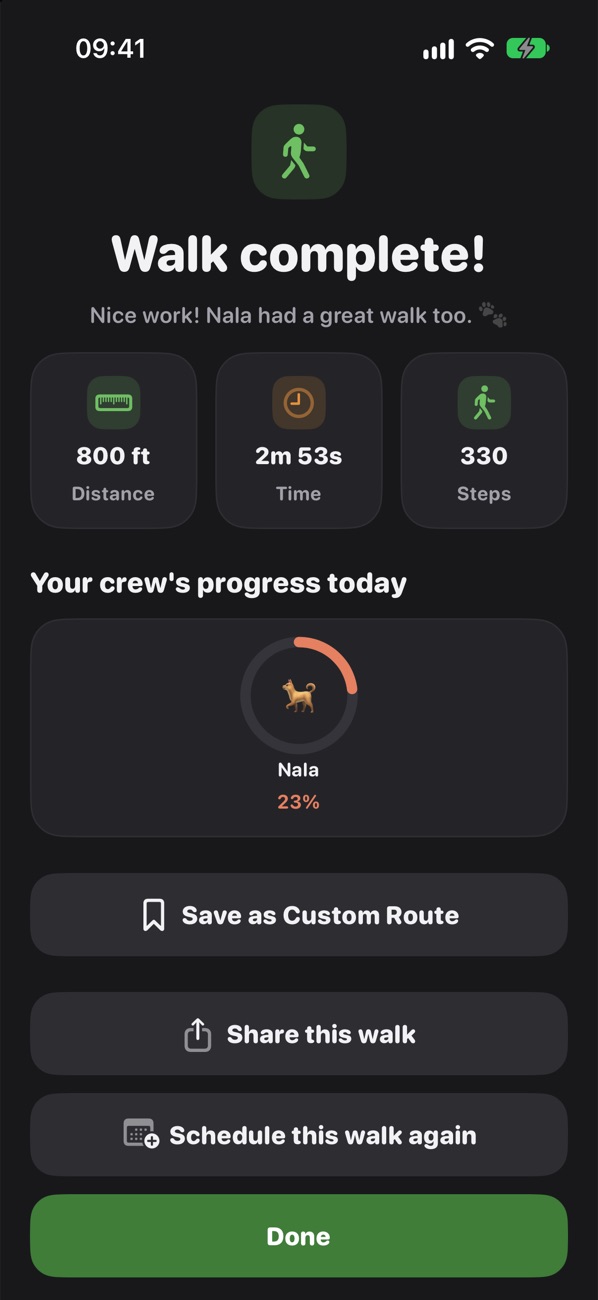
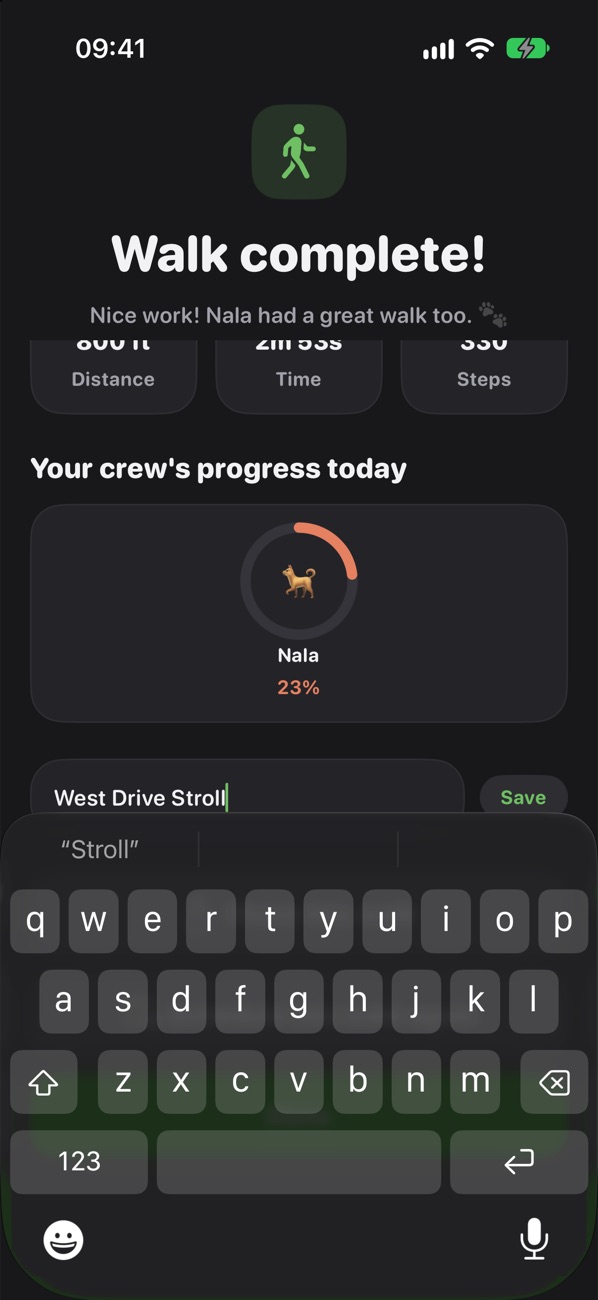
- After a walk, on the summary screen, tap Save as Custom Route.
- Type a name and tap Save. It's now in My Routes.
Walk a saved route
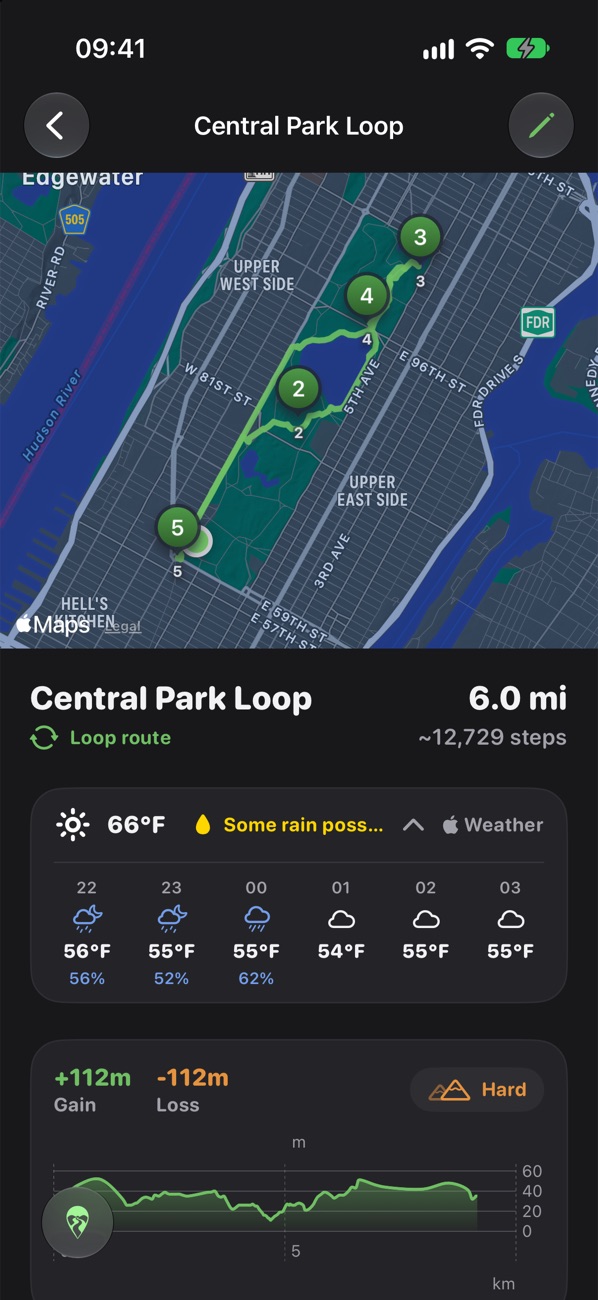
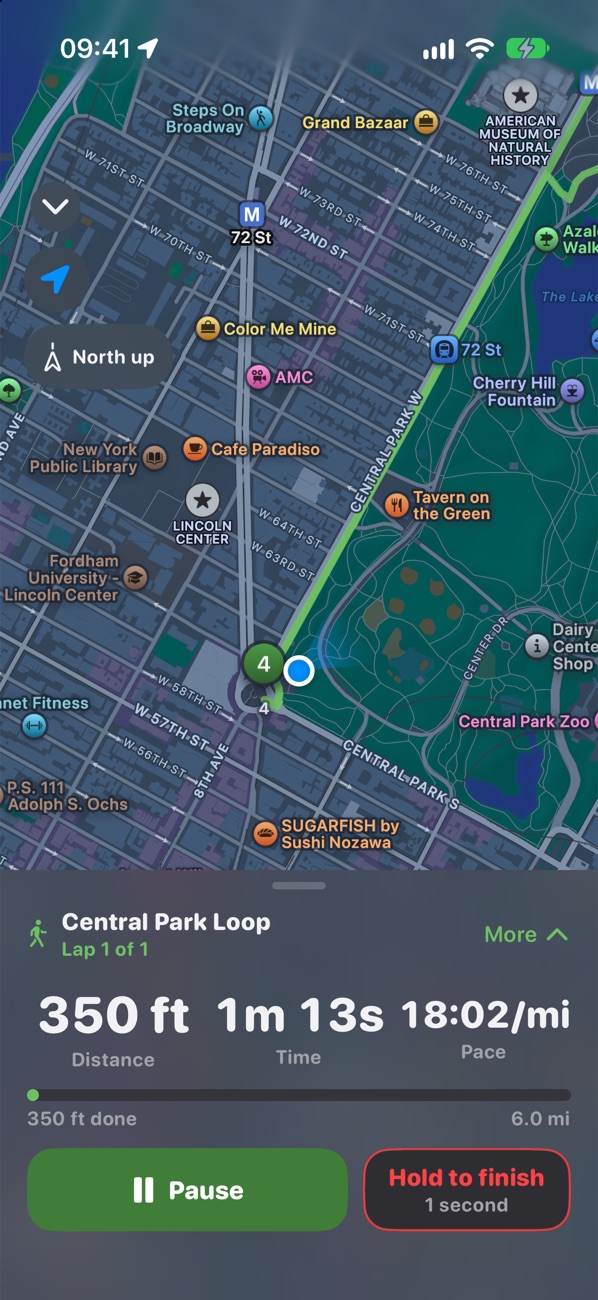
- Open My Routes and tap the route.
- Pick Walk, Run or Ride, then tap Start Walk.
- From the same screen you can view its history, open it in Apple Maps, or share it to the community.
Let Wockett find a route
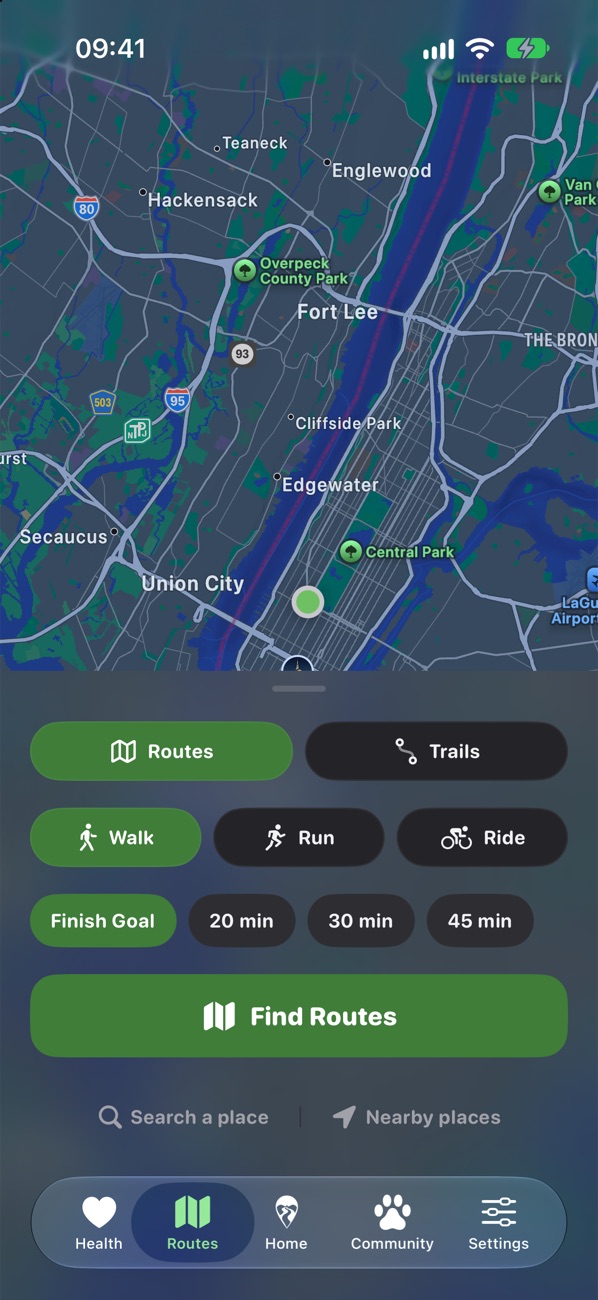
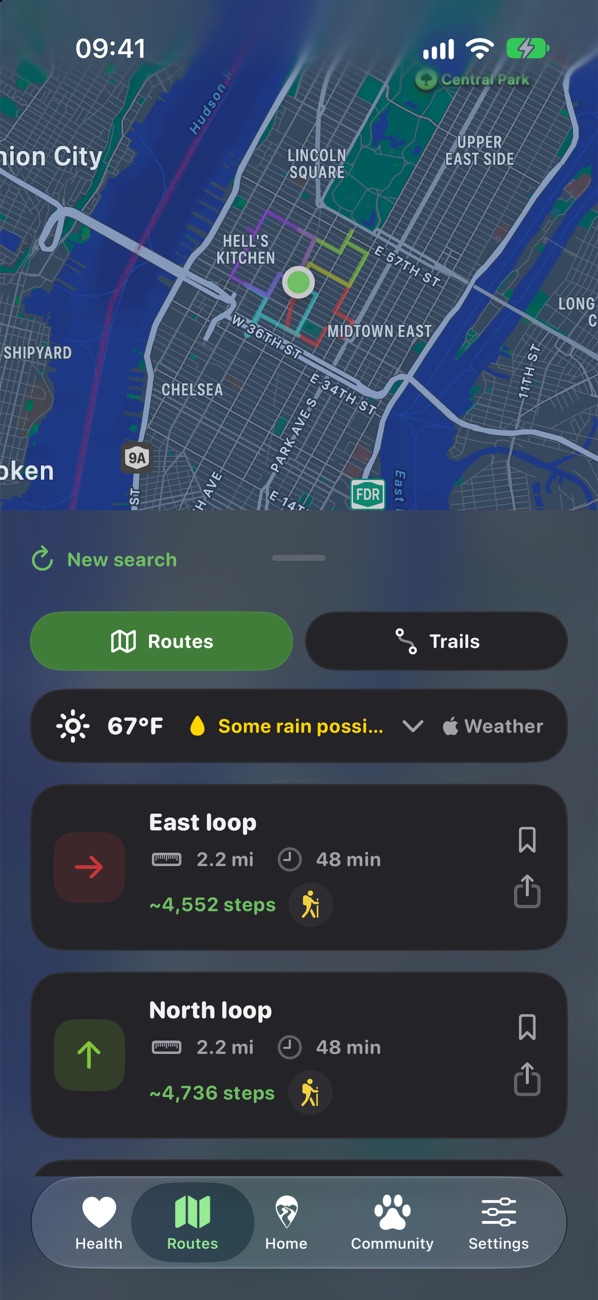
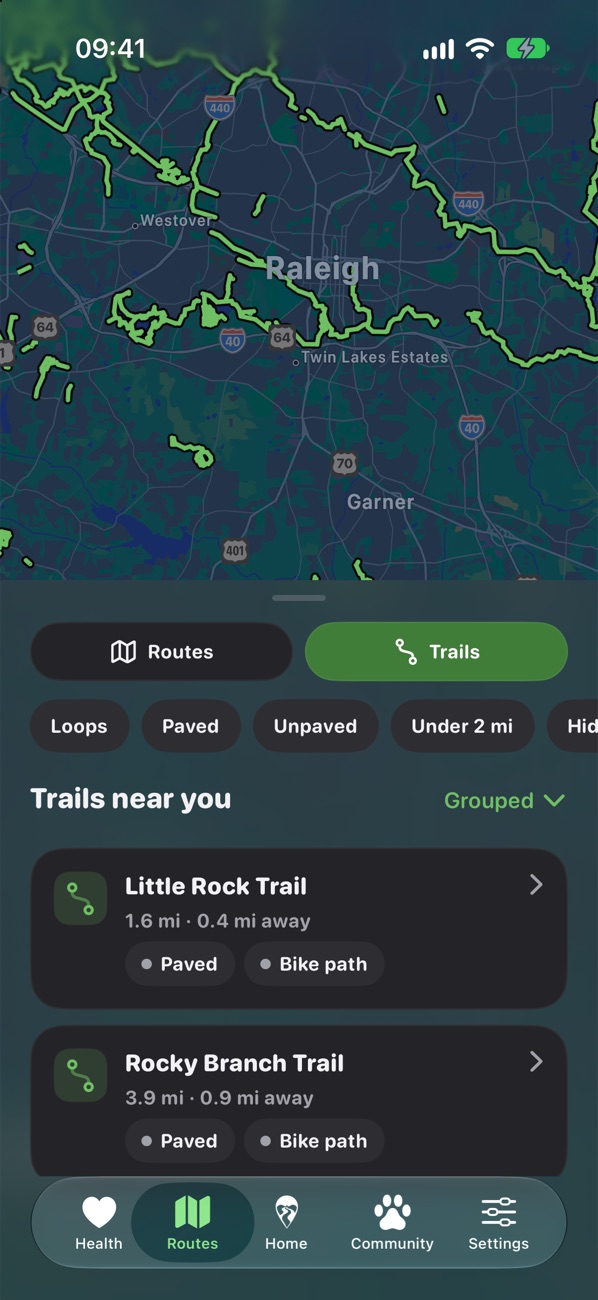
- Open the Routes tab and choose Routes or Trails.
- Pick Walk, Run or Ride and how long you have: Finish Goal, 20, 30 or 45 min.
- Tap Find Routes, look through the suggestions, and tap Start Walk.
- Tap the bookmark on a route to keep it.
Quick tips
Start with Siri
Say "Hey Siri, start a walk with Wockett", or ask "How many steps today in Wockett".
Control Center
Add Start Walk to Control Center to start a walk in one tap.
Lock Screen controls
Pause, resume or end your walk from the Lock Screen or Dynamic Island.
Auto-resume
Stopped at a crossing? Wockett pauses, then picks up again by itself when you move.
Voice cues
Turn on voice cues and water breaks under More during a walk.
Forgot your phone?
Log a past walk from Health → Activity History.
Home Screen widget
Add the Wockett widget to see today's steps without opening the app.
Indoor walks
Treadmill or bad weather? Choose Indoor on Home.
FAQ & troubleshooting
My steps show 0
Wockett reads steps from Apple Health. Check that Wockett has Health access in the Health app under Sharing. Still stuck? In Settings → Troubleshooting, switch Data source to App Only and back to Apple Health.
I got the "untracked walk" notification hours later
iOS only lets Wockett check in the background a few times a day, so this notice arrives after your walk, not during it. If Wockett is open, Home offers to start tracking straight away.
Challenges or the community won't load
Challenges, shared routes and the achievement feed need you to be signed in to iCloud in the iPhone Settings app.
Will my walks move to a new iPhone?
Yes. Your history syncs through your own private iCloud, so signing in with the same Apple Account brings it back.
I pressed Finish by accident
Finishing needs a one-second hold, then a confirmation. Tap Keep walking and nothing is lost.
Where is Wockett available?
Wockett is on the App Store in the United States and Canada.
Still need help? Email support@wockett.app.
What's new
Version 1.15
- New Health → Insights: weekly and monthly trends, including each pet's totals.
- Cleaner trails list, and long trails can be walked out and back with a "Turn around here" cue.
- Download trails for more states from Settings → About → Trail Regions.
- Community likes and Wocketts count for everyone; Report and Block work better.
- Rate Wockett from Settings → Support, and a new animated launch screen.
Version 1.14
- A redesigned Home with a Today card: choose your activity, then tap Start.
- Get walking or cycling directions to a trail without leaving the app.
- Hold to finish, then confirm, so a walk never ends by accident.
- Pets get credit for the whole walk, however it ends.
- Siri, Control Center and the widget work more reliably.